Mac OS X Server can act as an NT-Style Primary Domain Controller through the use of Samba (SMB). The Mac OS X Server can provide file and print services as well as host user profiles and home folders and provide authentication services for the domain. Even complex user and group policies can be implemented through the use of a logon script. Again, all of this is accomplished through OS X Server's implementation of the open-source Samba package which is a free software re-implementation of the SMB networking protocol. Please note this guide focuses on Mac OS X Server 10.6 and Windows XP Pro SP3 clients. Vista clients (Edit: Windows 7 clients are not supported. See this article.) should work equally as well with a few tweaks (outlined later).
Step one - Enabling the SMB ServiceIf the SMB service isn't already running on your server, you'll need to enable it. (This step assumes that you already have Open Directory running as a Master on the server you'd like to make the PDC.) To do this, open Server Admin, click on your server's address, click on Settings, then Services. Place a check in the box next to SMB. Click save. You'll now see the SMB service on the left list under your server's address as shown here.

Click on the SMB service in the left list. Click on settings. On the general tab, set the role to "Primary Domain Controller (PDC)". Enter something for description, your hostname under computer name, and the finally specify the name of the domain you'd like this server to be the PDC for. In this image, my domain is named OSXTEST.

Under Access, set the options to the needs of your organization.
Medium logging is usually sufficient. Feel free to change as needed.
Under advanced, if you use a WINS server you can configure this here.
Keep the box "Enable virtual share points" checked if you'd like to be able to be able to access the Mac home directory (assuming you're using this in a mixed platform environment) via a mounted drive in My Computer when the user logs in. More on this later.
Press save. You can now start the SMB service by clicking "Start SMB" in the bottom left of the Server Admin window.
Step 3 - Configuring users in Workgroup ManagerBefore moving on, you need to ask yourself, "Will I be storing these profiles on the same server that's acting as the PDC, or would I like to store them on a different OS X Server?" A good example of when this would be needed is if your organization has users grouped and placed on different file servers based on alphabet, grade level, etc. In cases like that, it would make sense to keep the Windows profiles on the same server as the network Mac home directories. Or, if you plan on making a new network share on a file server other than the one acting as the PDC to store all of the profiles, this would also apply. If any of these situations are the case for you, it's a little more complicated. Read step A below. If you're fine with your windows profiles being stored on the server that's acting as the PDC, jump to step B.
Step A (The more complicated one)
Step one - Make a new network share on your secondary server. Name it what you'd like. In my example below, I named it "NetUsersProfiles." Set the permissions as root - read and write, staff - read and write, others - no access or read only is fine. It's also generally a good idea to uncheck "Enable Spotlight Searching" under the Share Point tab, too. It should look like this when you're done. (This picture is on the same server, but just assume it's a separate one named mini-xserve2.)

Step 2 - Make sure that this secondary server is bound to the Open Directory Master, Kerberized, and SMB is running and configured as a domain member, rather than a PDC. Configuring SMB was described in step two. The only change would be selecting "Domain Member" instead of "Primary Domain Controller."
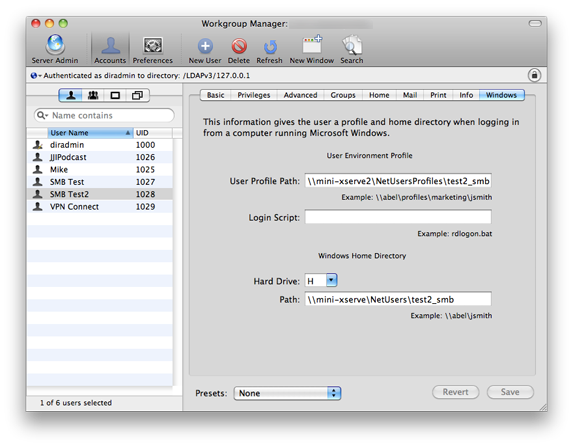
Step 3 - Configure your users in Workgroup manager. Open workgroup manager and select the user you'd like to configure. Go to the Windows tab on the far right. Where it says "User Environment Profile", insert the path of the network share you made above. Under "Windows Home Directory", insert the path to the user's network Mac home directory (if you're in a mixed platform environment) and select the drive letter you'd like it to mount as in My Computer on the PC. In this picture below, you'll see the User Profile is stored on mini-xserve2 and the Mac home directory is stored on mini-xserve. If you'd like to use a logon script to specify any sort of group or user policy enforcement, mount drives, etc., enter the name of the login script here. It must be stored in the /etc/netlogon folder of the server acting as the PDC and the filename must be all lowercase. When done, press Save.
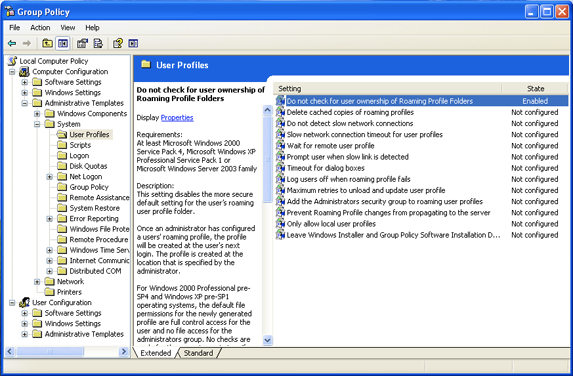
Step 4 - On the client machine, login as the administrator and open the group policy editor by typing gpedit.msc into the Run window. Go to Local Computer Policy > Computer Configuration > Administrative Templates > System > User Profiles and enable "Do not check for user ownership of Roaming Profile Folders". (If you're using Windows Vista, you may also have the make this change.) Reboot the machine. (Note: If you do not see "System" under Administrative Templates, right click on Administrative Templates, select Add/Remove Templates, select Add, choose system, choose open, then click close.)
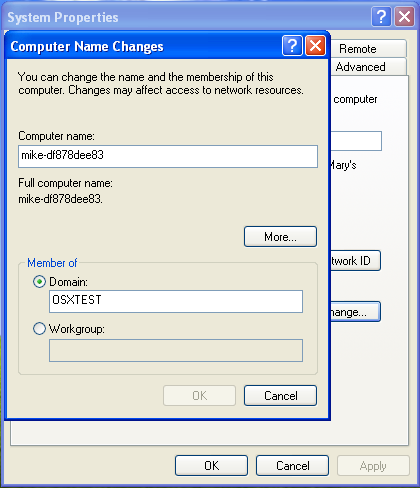
Step 5 - After the reboot, finally join the client to the domain. Login as the administrator again, go to the Start Menu, right click on My Computer, select Properties, choose the Computer Name tab, press the Change button. Enter the name of the domain you specified in step one. In my case it was OSXTEST. Authenticate with a directory administrator account. Reboot the machine.
Step 6 - After the reboot, log in with the user you configured above and verify everything is working correctly. If so, congratulations. Jump down to step 4 below for some additional information.
(Getting a "Not enough space on the disk?" error? See the special section below.)
Step B - The less complicated one
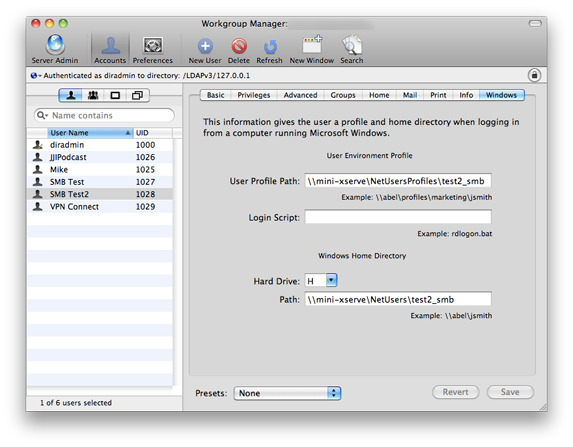
Step 1 - Open workgroup manager and select the user you'd like to configure. Go to the Windows tab on the far right. Where it says "User Environment Profile", leave the path blank to have the profile stored in the default /Users/Profiles directory, or specify a sharepoint on the PDC. The permissions for the sharepoint on the PDC should be root - read and write, staff - read and write, others - no access or read only is fine. Under "Windows Home Directory", insert the path to the user's network Mac home directory (if you're in a mixed platform environment) and select the drive letter you'd like it to mount as in My Computer on the PC. In this picture below, you'll see the User Profile is stored on a sharepoint of mini-xserve and the Mac home directory is also stored on mini-xserve. If you'd like to use a logon script to specify any sort of group or user policy enforcement, mount drives, etc., enter the name of the login script here. It must be stored in the /etc/netlogon folder of the server acting as the PDC and the filename must be all lowercase. When done, press Save.
Step 2 - Join the client to the domain. Login as the administrator on the PC, go to the Start Menu, right click on My Computer, select Properties, choose the Computer Name tab, press the Change button. Enter the name of the domain you specified in step one. In my case it was OSXTEST. Authenticate with a directory administrator account. Reboot the machine.
Step 3 - After the reboot, log in with the user you configured above and verify everything is working correctly. If so, congratulations. Jump down to step 4 below for some additional information.
Step 4 - Additional InformationIf you're experiencing any access denied error messages using the more complicated method, again, make sure to set the permissions correctly, and make sure the secondary server is bound to the Open Directory Master, Kerberized, and SMB is running and configured as a domain member, rather than a PDC. Also make sure to make the registry change that's needed on the client as described above. If you're using Windows Vista this change may also need to be made. All of this was described in detail under Step A of Step 3 above.
Tell your client(s) that if they're away from the PDC, out of the network, etc, they'll need to use their shortname to login. Windows is caching the credentials for the shortname, not the full name. After weeks of calls to Apple enterprise and tons of configuration changes, logging in away from the domain turned out to be something as simple as this.
To supply SMB Print services, enable the Print service on your server, add a queue, and enable the SMB option for the queue.
The benefits of using Mac OS X Server as a Primary Domain Controller for your domain are endless. You can harness the power, ease of use, security, and flexibility of Mac OS X Server all while still supporting your Windows clients and allowing for future Mac growth.
Not Enough Space on the Disk? What?If you're storing your roaming profiles on a domain member as outlined in Step A, and you begin noticing "Windows cannot update your roaming profile. Error: There is not enough space on the disk." messages upon logout, you'll need to disable Darwin Streams support on your PDC and on your Domain Members where the profiles are stored.
1. Stop SMB
2. In terminal make a backup of the smb.conf file:
sudo cp /etc/smb.conf ~/Desktop/smb.conf.old
2. In terminal type the following:
sudo pico /etc/smb.conf
3. Locate the following sections and edit to reflect the following:
;vfs objects = notify_kqueue,darwinacl,darwin_streams
vfs objects = notify_kqueue,darwinacl
; The darwin_streams module gives us named streams support.
stream support = no
4. Ctrl + o to save the changes
5. Start smb
ThanksPlease leave any comments below and I'll try and answer them to the best of my ability. If there's some extremely technical issue that's preventing this from working in your environment, please understand that this is just a general guide. I do not have time to try and create a test environment for other users' configurations. Contact Apple Enterprise Support or an experienced OS X Server administrator for more detailed assistance.
Last Updated 8/13/2010